Showing posts with label window tricks. Show all posts
Showing posts with label window tricks. Show all posts
The Best Computer Tips and Tricks: Data Security
Disable Remote Registry EditingOnly you should be editing your Windows registry, so make sure this service is disabled by clicking Start, Run, and then typing "services.msc." Scroll down to Remote Registry and make sure the service is stopped, and then set it to either manual or disable.
Lock It Down
It's always a good idea to lock your PC if strangers are nearby and you step away for a few minutes. Just press Windows key+L to lock your PC. Alternatively, you can set your screensaver (via the Screensaver tab in Display Settings under Control Panel) to require a password if it's deactivated by checking the box in "Settings" that says "On resume, password protect."
Prevent Phishing Attacks
Protect yourself from identity theft and phishing attacks by using the the latest versions of Firefox, Internet Explorer, and Opera. These browsers include protection that double-checks URLs against a blacklist, and will notify you if you're about to visit a known phishing site.
Keep Your Software Up to Date
Hackers and crackers love to take advantage of exploits found in software, which causes the developers to release a patch to plug up the holes. Therefore, it's imperative you not only enable Windows Update but also download the latest version of any software on your system, especially your Web browser and antivirus program.
Be Wary of P2P Files
Virus makers love peer-to-peer file-sharing services. They name their virus "Angelina Jolie Wallpapers" or something similar and upload it. Then millions of people download it, launch it, and wonder why their computers are infested with viruses. Download with caution, and always use antivirus software. If you need an effective, free antivirus solution, we recommend AVG Free.
Wipe the Drive Before Donating Your Old Computer
If you are getting rid of a hard drive and want to render all or some of its data unrecoverable, you have two options. You can download Eraser to securely wipe any file or folder, and you can use Darik's Boot and Nuke SE (DBAN) to write over the entire drive. To use DBAN, download it and burn it as an ISO disc, then boot from it. It will provide you with instructions on the welcome screen.
Encrypt Sensitive Files
If you want to encrypt sensitive data, you can buy a portable USB drive with built-in encryption like the CMS ABS-Secure Encrypted Backup System, but if you just want to protect a specific folder or group of files, we recommend Truecrypt, which is free. It encrypts a custom-sized volume with 256-bit AES encryption, so it's extremely secure.
Verify Your Backups
Many people have a "set it and forget it" mindset when it comes to backups. Even after you establish a regimen, however, it's critical that you check the target folders periodically to ensure the proper files are being backed up. If not, re-configure your backup routine to make sure it's working properly.
Back Up Your Data
You must back up your data, period. If you have the means, we highly recommend an external USB drive like the Maxtor OneTouch 4 Plus. If you already have an extra drive in your system—but just need some good backup software—try the free version of 2BrightSpark's Syncback, which is sublimely easy to configure.
Turn Off Your PC During Lightning Storms
Even surge protectors can be overwhelmed during electrical storms, and we've seen the results first-hand—fried motherboards, processors, hard drives and power supplies. If you're experiencing a heavy-duty electrical storm, take our advice and unplug your computer from the wall socket—just in case. And buy a laptop to use until the crisis passes.
Enable S.M.A.R.T for Your Hard Drives
S.M.A.R.T (self-monitoring analysis and reporting technology) allows your drive to report whether it's about to fail, which can give you a heads-up to replace it. All the modern hard drives have it—go into your PC's BIOS (press Del or F2/F10 during bootup) and enable it.
Enable Extension Viewing
By default, Windows hides file extensions, and virus-makers exploit this feature by giving their executable program names like Popularsong.exe, which appears as a harmless audio file if you have extensions hidden. To enable extension viewing, open any folder and click Tools, Folder Options, and uncheck "Hide extensions for known file types.
The Best Computer Tips and Tricks: Microsoft Office 2007
View Documents as DraftsOne thing that annoys us about Word 2007 is that it doesn't automatically let you open a document in Draft view (which was the Normal view in earlier versions of Word). To enable this, click the Office button > Word Options > Advanced > General. Then click the box next to "Allow opening a document in Draft View."
Display Formatting MarksSome people can live without Word's marks for spaces and paragraphs, but for those Word 2007 users who can't, go to the Office button > Word Options > Display. Then, under "Always show these formatting marks on the screen," check the box for spaces, paragraph marks, and more.
Show Page Breaks in ExcelPrinting an Excel spreadsheet can be a hassle, but you don't need to go to Print Preview in order to see where a page breaks. Click the Office button, then under Excel Options, click Advanced. Under "Display options for this worksheet" click the box next to "Show page breaks."
Check Your StyleFirst, Word could check your spelling, and then your grammar; now it can even critique your writing style. If you're concerned about things like wordiness and improper use of the passive voice, have Word 2007 check for them. Click the Office button > Word Options > Proofing. Under Writing Style, select Grammar & Style from the dropdown. If there are particular areas you don't Word to scrutinize, click the adjacent Settings button and then uncheck the appropriate boxes.
Change Your Presentation's ResolutionWith larger wide-screen displays becoming the PC-viewing norm, you might not want your PowerPoint presentation to go online formatted for an old-school 800x600 resolution. To bump up your presentation's optimal screen size, click the Office button > PowerPoint Options > Advanced. Under the General area, click Web Options, select the Pictures tab, and choose the screen size you want.
Revert to Old Office File FormatsThe latest version of Office "grants" users new default file extensions that aren't compatible with previous versions; you're forced to download and install a plug-in. But if you want to make the old Office file formats your default ones, click Office, and then Options for the specific program you're in. Select Save in the left-hand column, and then under "Save documents," choose the old Office file extension from the pull-down menu next to "Save files in this format."
Display Formatting MarksSome people can live without Word's marks for spaces and paragraphs, but for those Word 2007 users who can't, go to the Office button > Word Options > Display. Then, under "Always show these formatting marks on the screen," check the box for spaces, paragraph marks, and more.
Show Page Breaks in ExcelPrinting an Excel spreadsheet can be a hassle, but you don't need to go to Print Preview in order to see where a page breaks. Click the Office button, then under Excel Options, click Advanced. Under "Display options for this worksheet" click the box next to "Show page breaks."
Check Your StyleFirst, Word could check your spelling, and then your grammar; now it can even critique your writing style. If you're concerned about things like wordiness and improper use of the passive voice, have Word 2007 check for them. Click the Office button > Word Options > Proofing. Under Writing Style, select Grammar & Style from the dropdown. If there are particular areas you don't Word to scrutinize, click the adjacent Settings button and then uncheck the appropriate boxes.
Change Your Presentation's ResolutionWith larger wide-screen displays becoming the PC-viewing norm, you might not want your PowerPoint presentation to go online formatted for an old-school 800x600 resolution. To bump up your presentation's optimal screen size, click the Office button > PowerPoint Options > Advanced. Under the General area, click Web Options, select the Pictures tab, and choose the screen size you want.
Revert to Old Office File FormatsThe latest version of Office "grants" users new default file extensions that aren't compatible with previous versions; you're forced to download and install a plug-in. But if you want to make the old Office file formats your default ones, click Office, and then Options for the specific program you're in. Select Save in the left-hand column, and then under "Save documents," choose the old Office file extension from the pull-down menu next to "Save files in this format."
How to Change the Displayed Name of the Processor in Windows 7, XP, and Vista
How to Change the Displayed Name of the Processor in Windows 7, XP, and Vista
Step One: Open up the Registry editor (RegEdit).
First, click Start, and search RegEdit (Windows 7/Vista). Open up regedit when the search has found it.
Step Two: On the left hand column in Registry Editor, open HKEY_LOCAL_MACHINE, under it,
open up: Hardware->DESCRIPTION->System-
or->1
Step Three: Now you can see a few lines of text on your right side in Registry Editor. Double-Click the one that is named "ProcessorNameString". A small box will pop-up, and you can change the processor's name to anything you like. After your done, press enter and close Registry Editor.
Step Four: Now we will see what we have changed under Windows.
Open Start, and Right-Click Computer, then click Properties in the Context Menu
Step Five: You can see your processor name changed to what ever you changed it to .
Troubleshooting: If the processor name did not change, Do step one, but on Step Two, instead of going into the number 1, go into number 0, and follow the rest of the Tutorial
How to Disable USB ports

Disable USB port:
1. Goto run
2. Type 'regedit' without quotes
3. Click on HKEY_LOCAL_MACHINE
4. goto SYSTEM
5. Click on CurrentControlSet
6. Click on services
7. Goto USBSTOR
8. Double click on 'Start' where value is 3
9. Now change the value data with 4
10. Now press ok and refresh your desktop your USB port is disabled, to enable the usb port replace the value 4 with 3
1. Goto run
2. Type 'regedit' without quotes
3. Click on HKEY_LOCAL_MACHINE
4. goto SYSTEM
5. Click on CurrentControlSet
6. Click on services
7. Goto USBSTOR
8. Double click on 'Start' where value is 3
9. Now change the value data with 4
10. Now press ok and refresh your desktop your USB port is disabled, to enable the usb port replace the value 4 with 3
How to watch movie in Dual audio,triple Audio etc.Follow below steps...

If you want to watch movies in english & hindi so you have to download VLC Media Player
After Download vlc media player open your dual audio movie.
And do below pics.
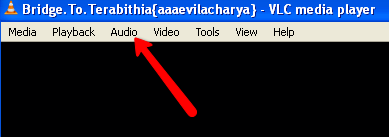
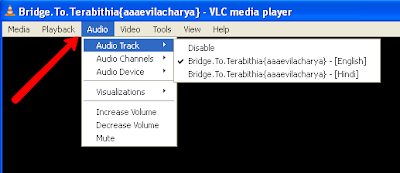
Now enjoy your movies in dual audios

Sometime computer travels with autorun virus.Its hard to remove them today i will tell you how to remove autorun virus.its a 4mb software that help you to remove your autorun virus.
Click here to download
क्या आप अपने मोबाइल से अपना कम्पयुटर बंद करना चाहते है तो देखे ये विडियो और करे अपने मोबाइल से अपना कम्पयुटर बंद

By this software you can convert your large mp3 file to small mp3 size.
you convert your file into this formats by this formats your file not lose there original qulaity - mp3 to wma, wma to mp3, mp3 to ogg.
This is 8MB software.
Click here to download your Software.
How to Recover Data from Formatted Drive?
Step One: Download a demo of iCare Data Recovery Standard .
You can download a demo to try whether iCare Data Recovery Standard can search and find out your formatted files. /download.html
Step Two: Start iCare Data Recovery Standard from the desktop icon once you have finished the installation or you might also be able to start it from “Start-->Programs-->iCare Data Recovery Standard”


Free download iCare Data Recovery Standard to recover your files from formatted partition now!
Download Free | Read More about iCare Data Recovery Standard
how to know mother bord version/system version?
If you don't know what is your motherboard model and if you lost your cd you want to install drivers so by this help you can dowwnload your drivers and you fun.For xp
Start menu --> run --> type “dxdiag”. On the "system" tab you have the motherboard manufacturer' s name mentioned as "system manufacturer" and model shown as "system model".For vista
Start menu --> in search space type “run” --> type “dxdiag”. On the "system" tab you have the motherboard manufacturer' s name mentioned as "system manufacturer" and model shown as "system model".
How to create folder by con in windows?

Have you ever tried to create a CON folder or any folder with names such as “con”, “prn”, “nul” “com1″ “com2″ “lpt1″ etc. but failed? Is it impossible to create folders with such names in windows?
Using ALT Key and Numeric Keypad:
You can also use the Alt key and the Numeric keypad to accomplish the same job in a much easier way. Here is how you can do it:
-
Create a New folder (Right-click -> New -> Folder)
-
Once the new folder is created, right-click on it and select the option “Rename”.
-
Hold down the ALT key and type 0160 from the numeric keypad (ALT+0160) and release the ALT key.
-
Now, the folder name should go blank so that you can type any name of your choice such as “con”, “prn” “nul” etc. and press Enter. That’s it, you’re done!
•Open Notepad [Start-->Run-->Notepad].
•In your Notepad just Copy/Paste the below code.
cls
:End
@ECHO OFF
title Folder Locker
if EXIST "Control Panel.{21EC2020-3AEA-1069-A2DD-08002B30309D}" goto UNLOCK
if NOT EXIST Locker goto MDLOCKER
:CONFIRM
echo Are you sure u want to Lock the folder(Y/N)
set/p "cho=>"
if %cho%==Y goto LOCK
if %cho%==y goto LOCK
if %cho%==n goto END
if %cho%==N goto END
echo Invalid choice.
goto CONFIRM
:LOCK
ren Locker "Control Panel.{21EC2020-3AEA-1069-A2DD-08002B30309D}"
attrib +h +s "Control Panel.{21EC2020-3AEA-1069-A2DD-08002B30309D}"
echo Folder locked
goto End
:UNLOCK
echo Enter password to Unlock folder
set/p "pass=>"
if NOT %pass%==googleagra goto FAIL
attrib -h -s "Control Panel.{21EC2020-3AEA-1069-A2DD-08002B30309D}"
ren "Control Panel.{21EC2020-3AEA-1069-A2DD-08002B30309D}" Locker
echo Folder Unlocked successfully
goto End
:FAIL
echo Invalid password
goto end
:MDLOCKER
md Locker
echo Locker created successfully
goto End
•In the above batch code the password has been set as googleagra.
•In your Notepad just Copy/Paste the below code.
cls
:End
@ECHO OFF
title Folder Locker
if EXIST "Control Panel.{21EC2020-3AEA-1069-A2DD-08002B30309D}" goto UNLOCK
if NOT EXIST Locker goto MDLOCKER
:CONFIRM
echo Are you sure u want to Lock the folder(Y/N)
set/p "cho=>"
if %cho%==Y goto LOCK
if %cho%==y goto LOCK
if %cho%==n goto END
if %cho%==N goto END
echo Invalid choice.
goto CONFIRM
:LOCK
ren Locker "Control Panel.{21EC2020-3AEA-1069-A2DD-08002B30309D}"
attrib +h +s "Control Panel.{21EC2020-3AEA-1069-A2DD-08002B30309D}"
echo Folder locked
goto End
:UNLOCK
echo Enter password to Unlock folder
set/p "pass=>"
if NOT %pass%==googleagra goto FAIL
attrib -h -s "Control Panel.{21EC2020-3AEA-1069-A2DD-08002B30309D}"
ren "Control Panel.{21EC2020-3AEA-1069-A2DD-08002B30309D}" Locker
echo Folder Unlocked successfully
goto End
:FAIL
echo Invalid password
goto end
:MDLOCKER
md Locker
echo Locker created successfully
goto End
•In the above batch code the password has been set as googleagra.
DEAD MONEY

Product Key of Windows 8 to Make it Full Version
Using below given product key of windows 8, you would be able to make it full and thus you would be able to use it for free.
TK8TP-9JN6P-7X7WW-RFFTV-B7QPF

TK8TP-9JN6P-7X7WW-RFFTV-B7QPF
DNJXJ-7XBW8-2378T-X22TX-BKG7J
MBFBV-W3DP2-2MVKN-PJCQD-KKTF7
6RH4V-HNTWC-JQKG8-RFR3R-36498
4Y8N3-H7MMW-C76VJ-YD3XV-MBDKV
28VNV-HF42G-K2WM9-JXRJQ-2WBQW
Use these keys and let me know whether it worked for you or not by commenting below. Your comments are our motivation so please comment.
What are the Hardware Requirements to Install Windows 8?
I have already provided lot of information about the Hardware requirements to Install windows 8 in you Pc in my older Post - Hardware Requirements to Install Windows 8? .The summary of the same are as follows:
- Processor: 1 gigahertz (GHz) or faster with support for PAE, NX, and SSE2
- RAM: 1 gigabyte (GB) (32-bit) or 2 GB (64-bit)
- Hard disk space: 16 GB (32-bit) or 20 GB (64-bit)
- Graphics card: Microsoft DirectX 9 graphics device with WDDM driver


